Multiprogram Editor
You can use the Multiprogram Editor feature to pin multiple instances of the Program Editor in the PROGRAM tab, allowing you to program multiple robots simultaneously. To pin the Program Editor panel for the currently active robot, use the Pin active Program Editor button.
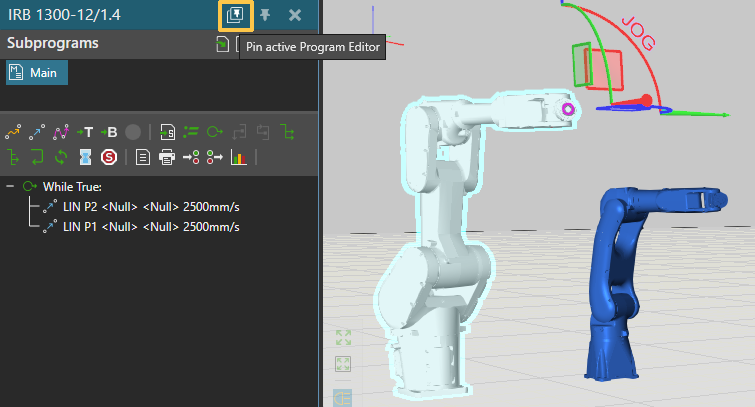
Or right-click and choose Pin Program Editor.

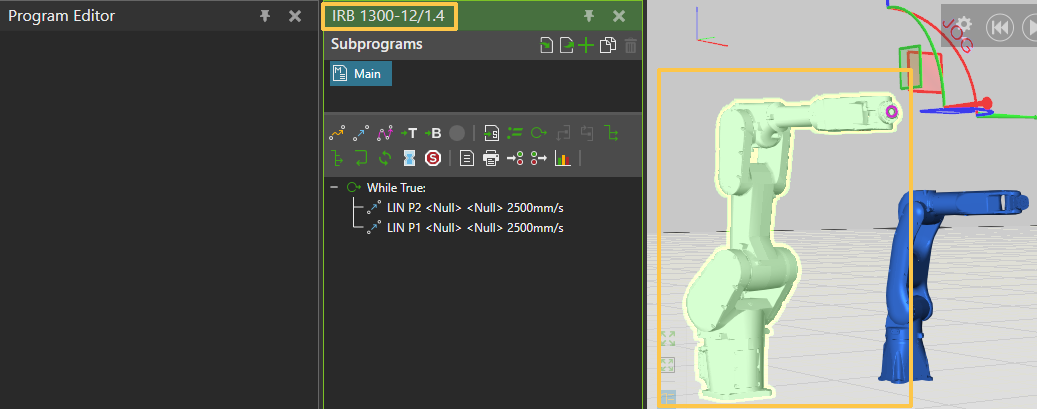
Both the pinned panel and robot will be highlighted green, and the name of the robot will appear as the panel's title.
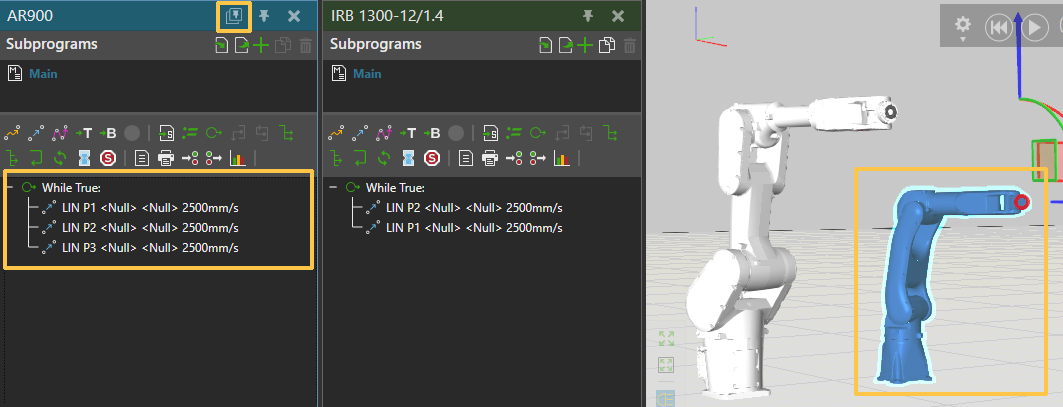
When selecting another robot, its program will appear in the Program Editor panel on the left. And you can use the Pin active Program Editor button to pin the panel for this robot as well.
To return a pinned panel to its default position, use the Close button.
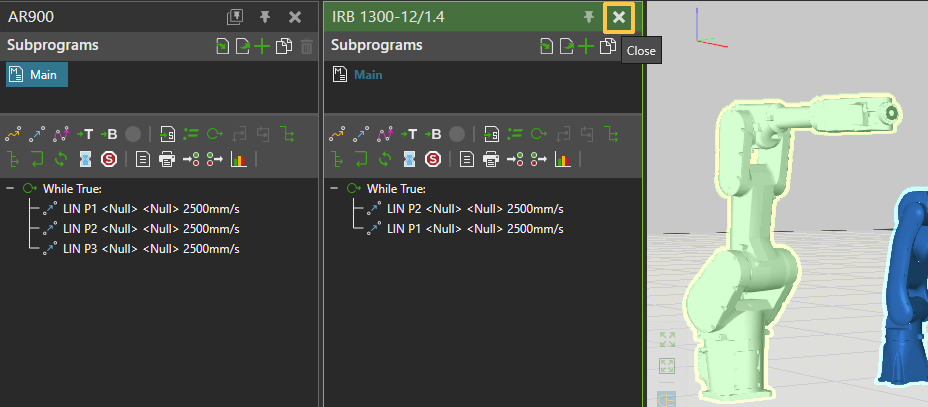
Tip: To optimize your available screen space, drag a Program Editor panel to another area of your screen.
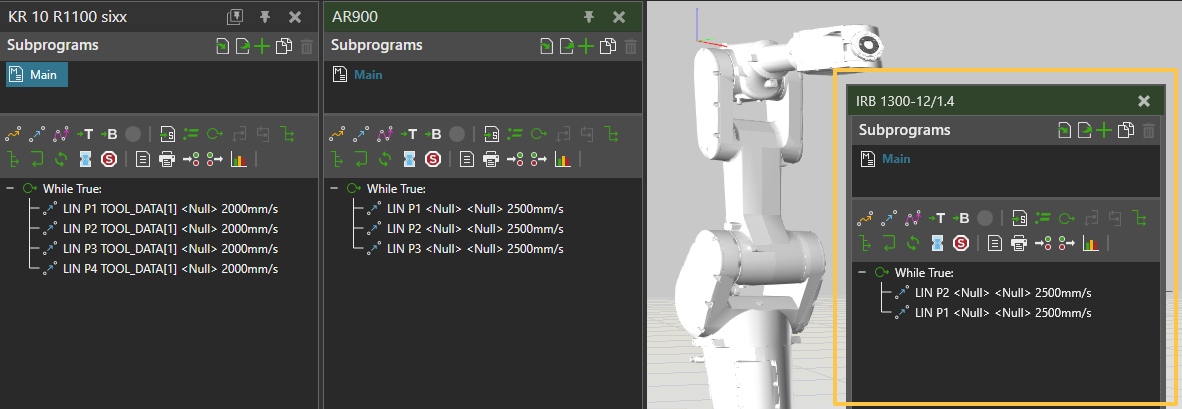
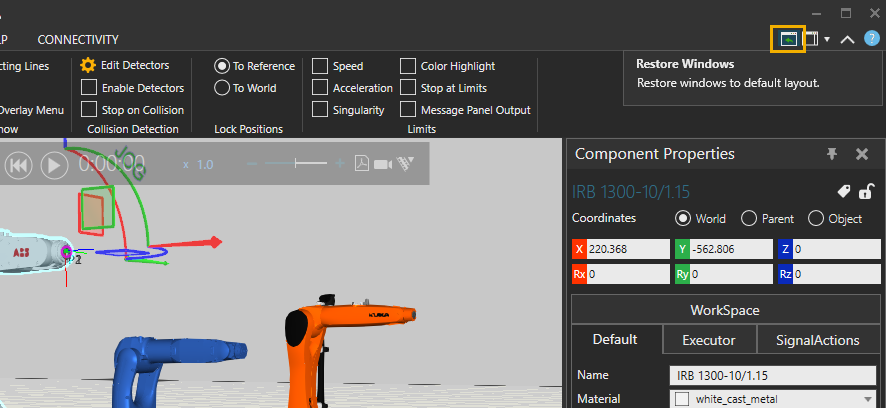
Tip: If your Program Editor panel is no longer visible and you need to restore it to its default position, use the Restore Windows option.